Localization
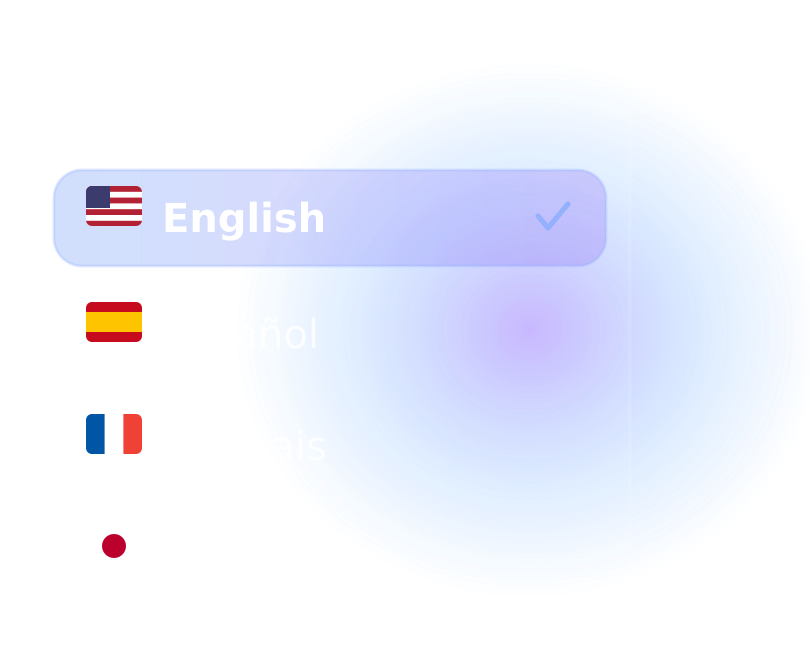
Serve your docs in multiple languages with AI translation. Once localization is enabled for your workspace, you configure everything from Project Settings, and readers get a language dropdown in your published docs.
Why localize your docs
Global reach
Serve developers worldwide in their native language, without spinning up separate sites to maintain.
Higher adoption
Documentation people can read comfortably gets read, and acted on, far more often.
Find it in Project Settings
Open your project, then go to Settings and select Localization. Flip the Translate toggle on to reveal the configuration panel.
Localization is enabled per workspace. If you don't see the Localization tab under Settings, contact the Theneo team to turn it on.
Set up translation
1
Turn on Translate
Under Settings, Localization, flip the Translate toggle on. The configuration panel appears.
2
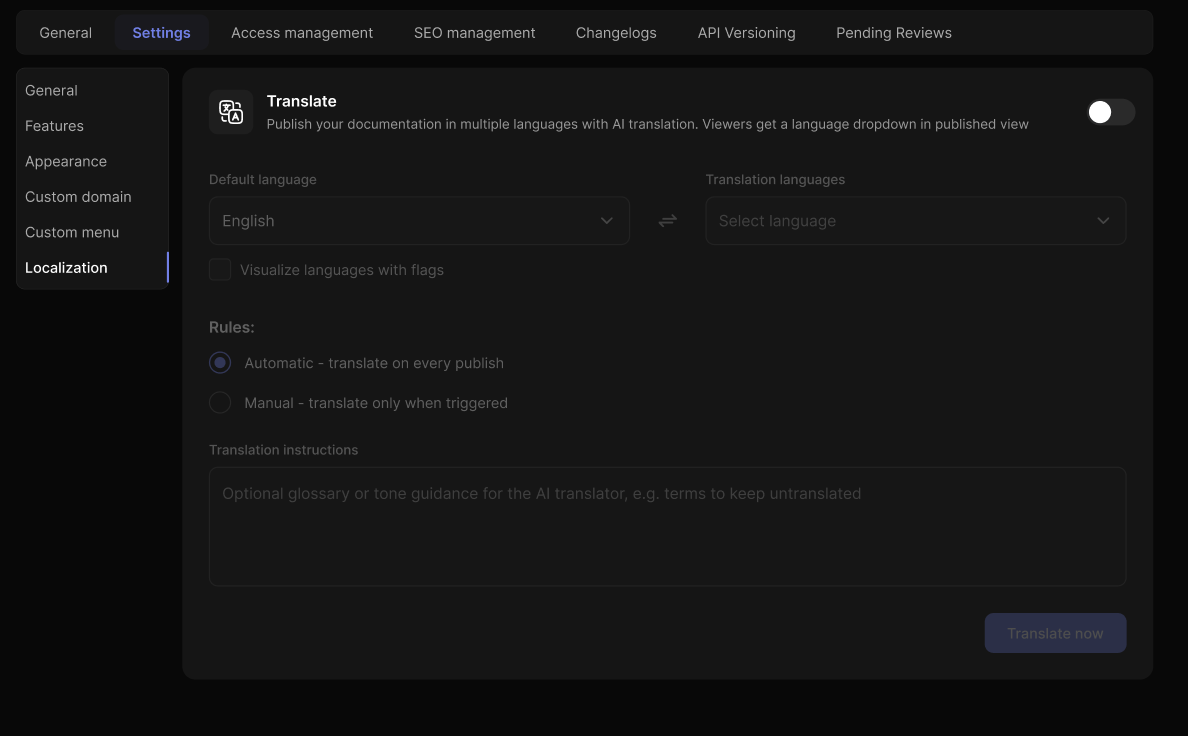
Set your default language
Choose the language your content is written in. English is selected by default.
3
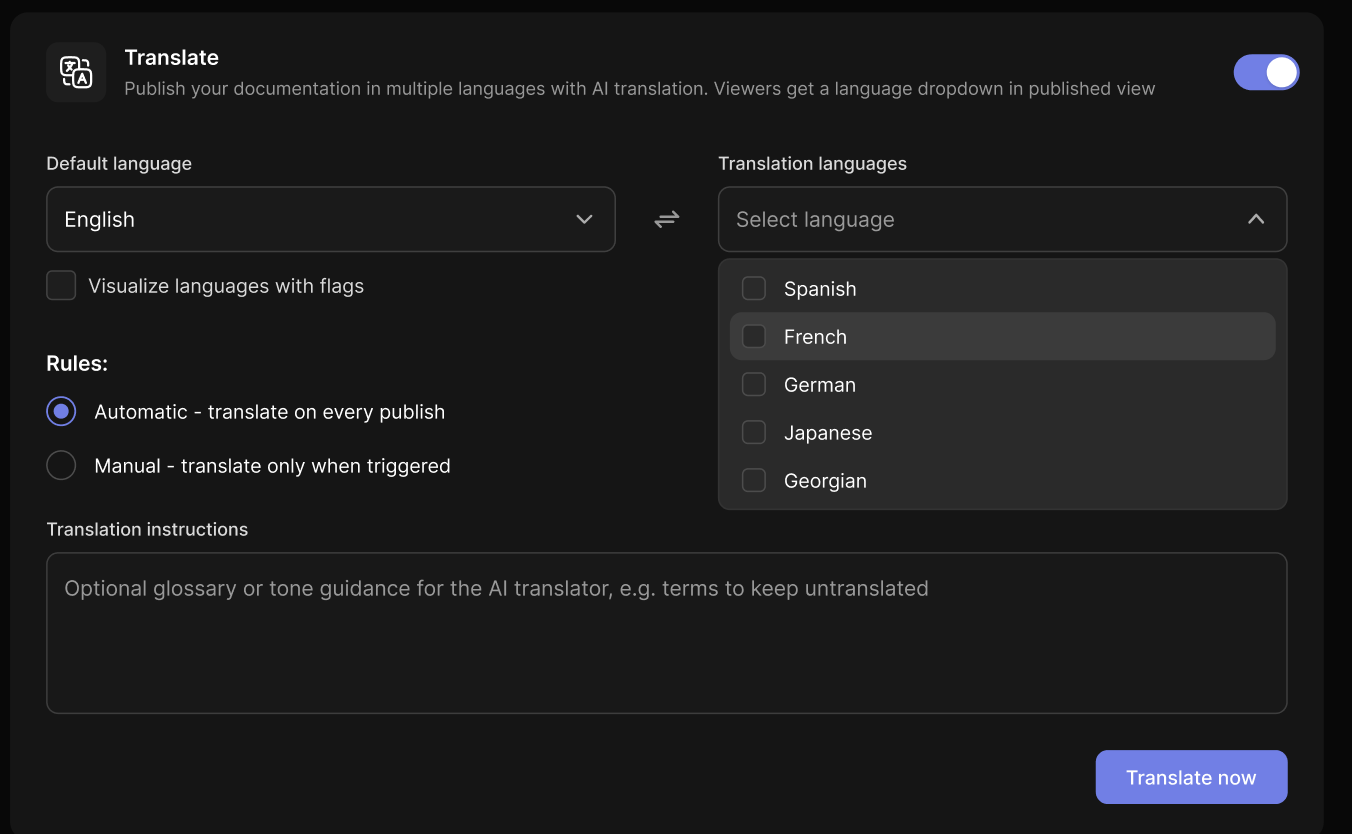
Add translation languages
Open the Translation languages dropdown and select your targets. Spanish, French, German, Japanese, and other languages are available.
4
Choose a translation rule
Pick Automatic to re-translate on every publish, or Manual to translate only when you trigger it.
5
Add translation instructions (optional)
Give the AI translator a glossary or tone guidance, such as product names or terms to keep untranslated.
6
Translate now
Click Translate now to generate the translations. Your published docs then show a language dropdown, so every reader gets the version that fits them.
Settings reference
- Translate: Master toggle for localization. When off, all translation settings stay hidden.
- Default language: The source language your docs are authored in.
- Translation languages: The target languages readers can switch between.
- Visualize languages with flags: Adds a country flag next to each language in the reader's dropdown.
- Rules: Automatic re-translates on every publish. Manual translates only when you click Translate now.
- Translation instructions: Optional glossary or tone guidance for the AI translator, for example terms to keep untranslated.
- Translate now: Generates translations immediately for your selected languages.
Where the dropdown appears
Once you publish with translations, your docs show a language switcher so readers can move between versions. Its position depends on the template your project uses, so it can sit in a different place from one theme to the next.
Changing your template can move the switcher. If it isn't where you expect, check your template layout under Branding & Styling.
Localization (also called internationalization or i18n) pairs naturally with SEO. Translated content helps you rank in every market you serve.


On this page
- Localization