Portal Editor
The Portal Editor is a visual, drag-and-drop canvas for building your portal pages. Click any element to select it, drag new ones in, and adjust everything from the panels on the right. If you are comfortable with code, you can switch to HTML and CSS whenever you like, but you never have to.
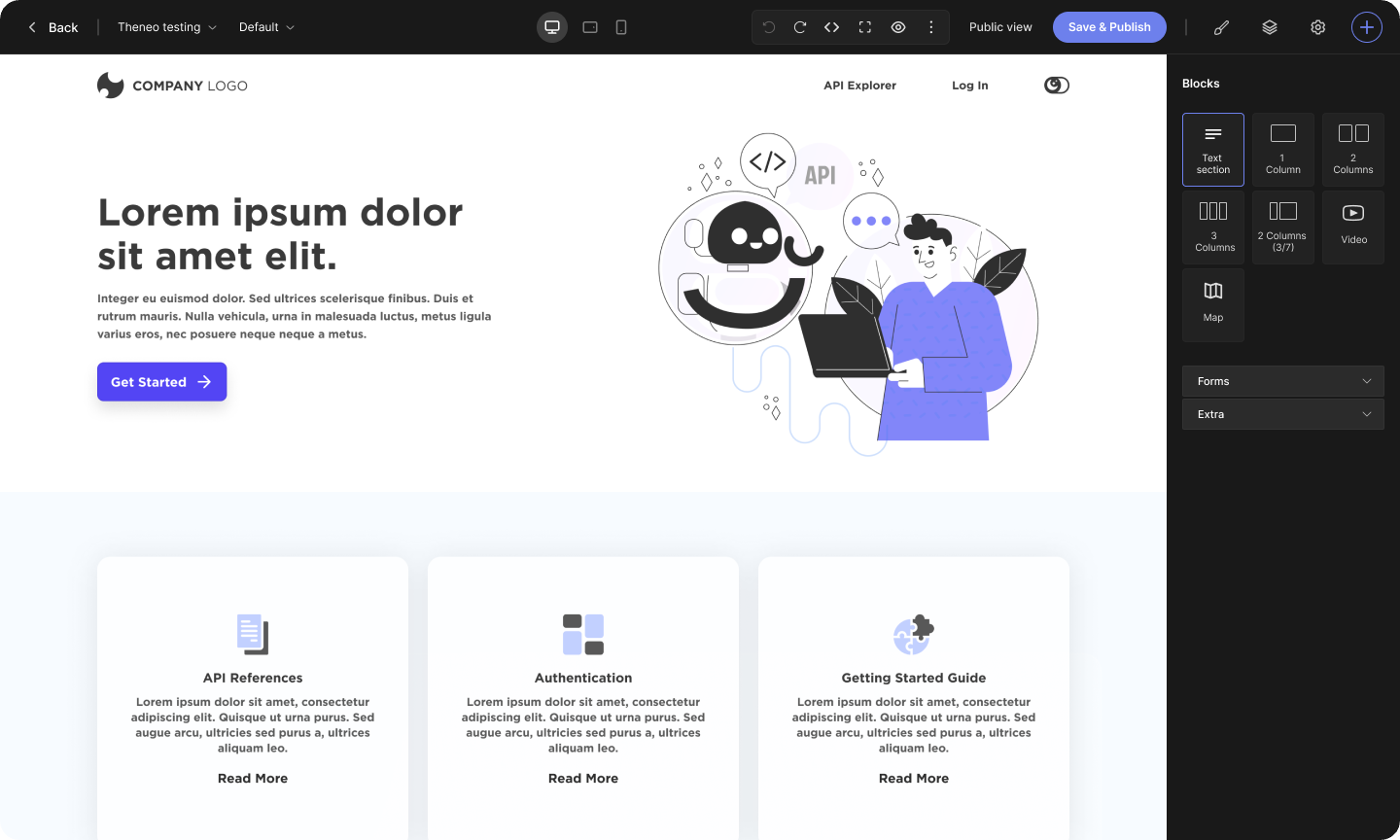
The workspace at a glance
The page you are editing sits in the center. A toolbar runs along the top, and the tools for changing whatever you have selected live in the panels on the right.
Add elements
Your library of building blocks. Open it with the plus icon, then drag elements onto the page.
Style
Change how a selected element looks: its size, spacing, fonts, and colors.
Settings
Change what a selected element does, like where a link points or an image's alt text.
Layers
See every element on the page as a tree. Handy for selecting something tucked inside another element.
Along the top you will also find device views for previewing desktop, tablet, and mobile, a preview button, and undo and redo.
Add a new element
1
Open the add panel
Click the plus icon in the top-right toolbar to open your library of elements.
2
Pick an element
Browse the list and choose what you need, such as text, an image, a button, or a full section.
3
Drag it onto the page
Drag your choice onto the canvas. A guide line shows where it will land, so you can drop it exactly where you want.
4
Refine it
Click the element to select it, then use the Style and Settings panels to make it yours.
Edit text and images
- Text: double-click any text to edit it right on the page.
- Images: double-click an image to open the media picker and swap it out.
Edit a link
1
Select the link
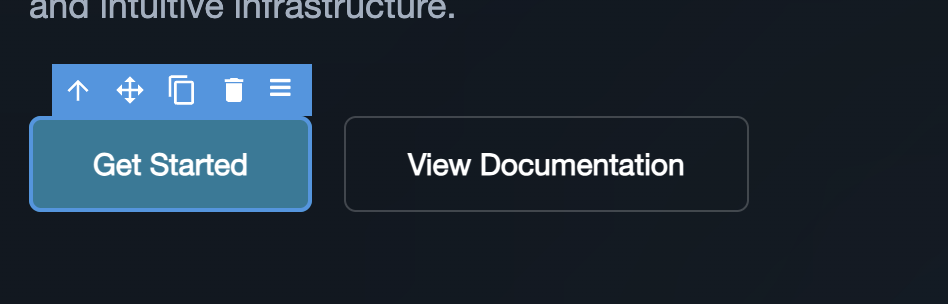
Click the link element once so it is highlighted.
2
Open Settings
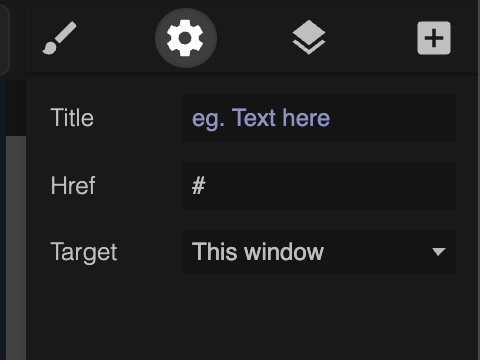
Click the Settings widget, the gear icon, on the right side of the editor.
3
Enter the destination
In the link field, type the address you want it to open, for example https://yourwebsite.com.
4
Choose how it opens
Optionally set it to open in a new tab, then click anywhere outside the panel to apply.
Move, duplicate, or delete
When you select an element, a small toolbar appears just above it. From there you can select its parent using the up arrow, drag the element to a new spot, duplicate it, or delete it. Changed your mind? Undo and redo are always waiting at the top.
Export and import code
Need an effect the visual editor cannot do on its own? Export your portal as code, adjust it locally, and bring it back in.
Export
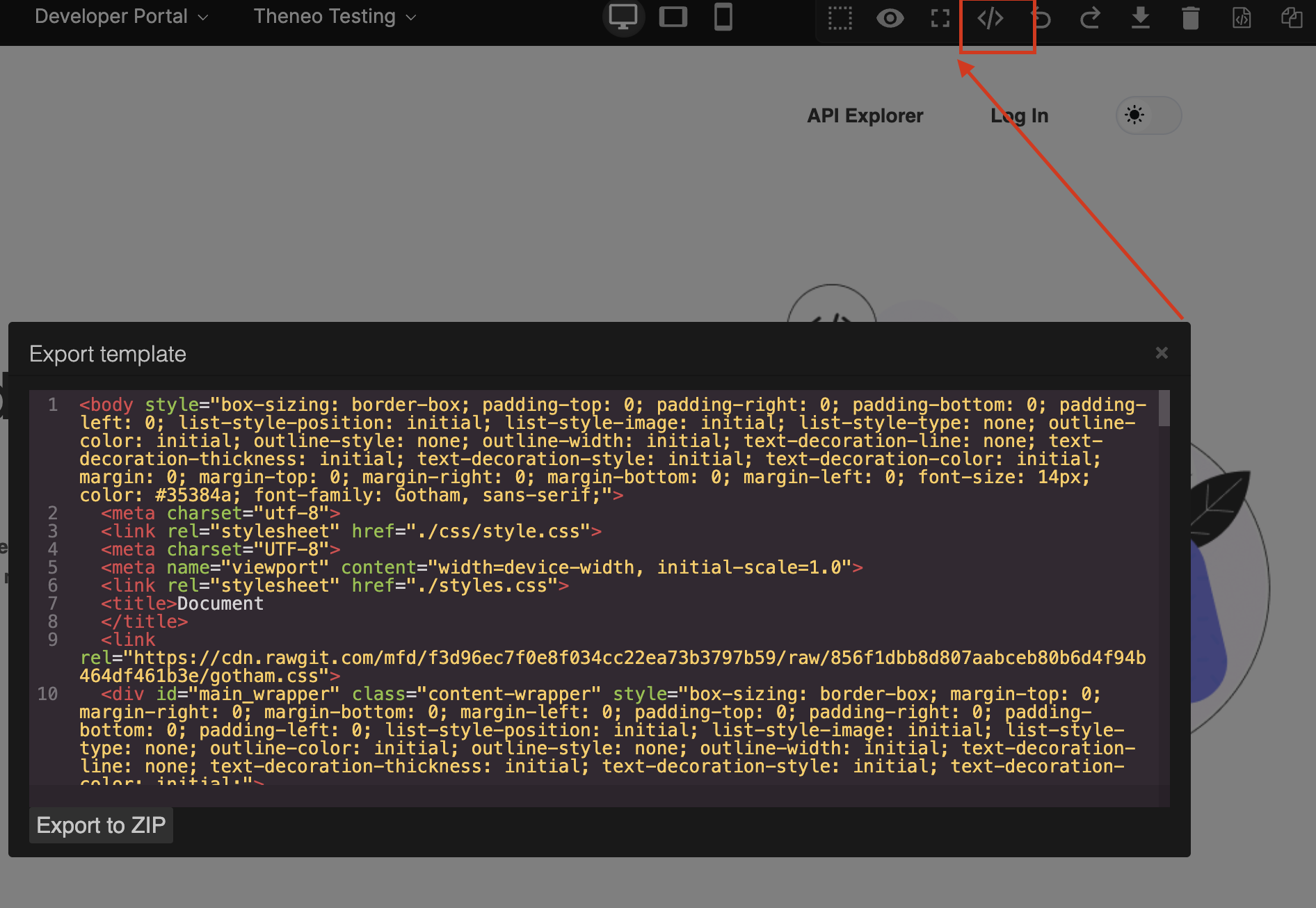
Open the code view and choose Export to ZIP to download your page's HTML and CSS. Keep it as a backup, save versions, or share it with a teammate.
Import
Already have code? Import it to jump-start your page instead of building from a blank canvas.
Here is the full round trip:
1
Export your code
Open the code view using the code icon in the toolbar, then click Export to ZIP to download your page.
2
Edit it locally
Unzip the file, open the HTML and CSS in your own editor, and make your changes, such as a new hover color or gradient.
3
Combine HTML and CSS inline
The importer reads a single block of HTML, so your styles need to travel inside it. Move your CSS inline, either inside one <style> tag within the HTML or as style attributes on each element. Any CSS left in a separate file will not be applied.
4
Import it back
Use Import in the code view and paste your combined HTML. Your changes show up on the canvas right away, ready to publish.

When everything looks right, click Save & Publish. You can use Public view at any time to see exactly what your visitors will see.


On this page
- Portal Editor