Preview Changes
Preview Mode shows exactly how your docs will look to readers, before you publish.
- Accurate rendering: see precisely how your content will appear in the published docs, so formatting, layout, and design all land as intended.
- Section-specific previews: preview individual sections to verify every detail, which is especially handy in large, multi-section documents.
How to use Preview Mode
1
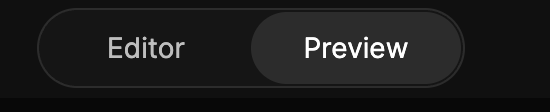
Find the switcher
In the editor header, locate the Editor / Preview switcher button.
2
Switch to Preview
Click the switcher to enter Preview Mode and view the latest version of your documentation as readers will see it.
3
Preview any section
Review any section to confirm your changes look right.
When everything looks good, select Publish to take your updates live.
Note: Preview Mode is a visualization tool for design and layout. It may not reflect full interactivity, such as a functional API Explorer or live code examples. Use it for final visual checks before updating your live documentation.
Was this section helpful?


On this page
- Preview Changes