Image & Video
The Image & Video widgets bring multimedia into your documentation (screenshots, diagrams, walkthroughs, and embedded videos), so you can show, not just tell.
Image
To add an image:
- Place your cursor where you want the image.
- Type
/imageto open the widget menu. - Upload a file directly or insert it via URL.
Add alt text and a caption (recommended)
After adding an image, hover over it and select Alt text or Caption from the toolbar:
- Alt text: a short, descriptive explanation of the image content.
- Caption: optional text shown with the image to give readers context.
Why alt text matters
- Accessibility: screen readers describe the image for users of assistive technologies.
- SEO: search engines better understand the image's content and context.
Tips for good alt text: describe what's essential, keep it concise, and avoid "image of…" or "picture of…", the context usually implies it.
When to use a caption
Use a caption to add context (e.g. "Architecture diagram for the v2 flow"), reference a figure in the text, or clarify what readers should notice.
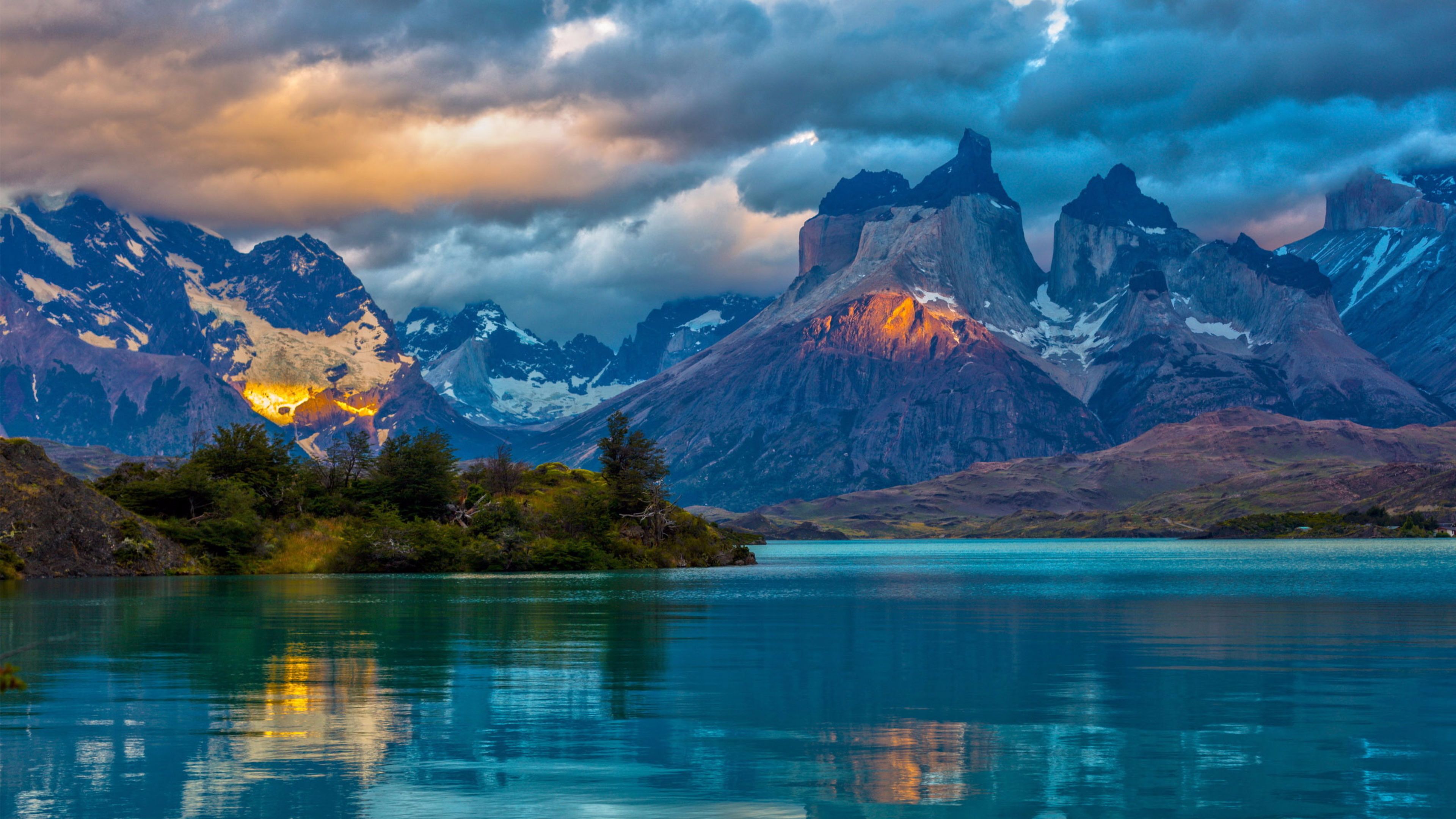
Golden-hour light briefly ignites the mountain face above a calm, glassy lake.
Video
To add a video:
- Place your cursor where you want the video.
- Type
/videoto open the widget menu. - Paste the video URL. The editor supports major hosts such as YouTube and Vimeo.
Was this section helpful?


On this page
- Image & Video