Themes & Templates
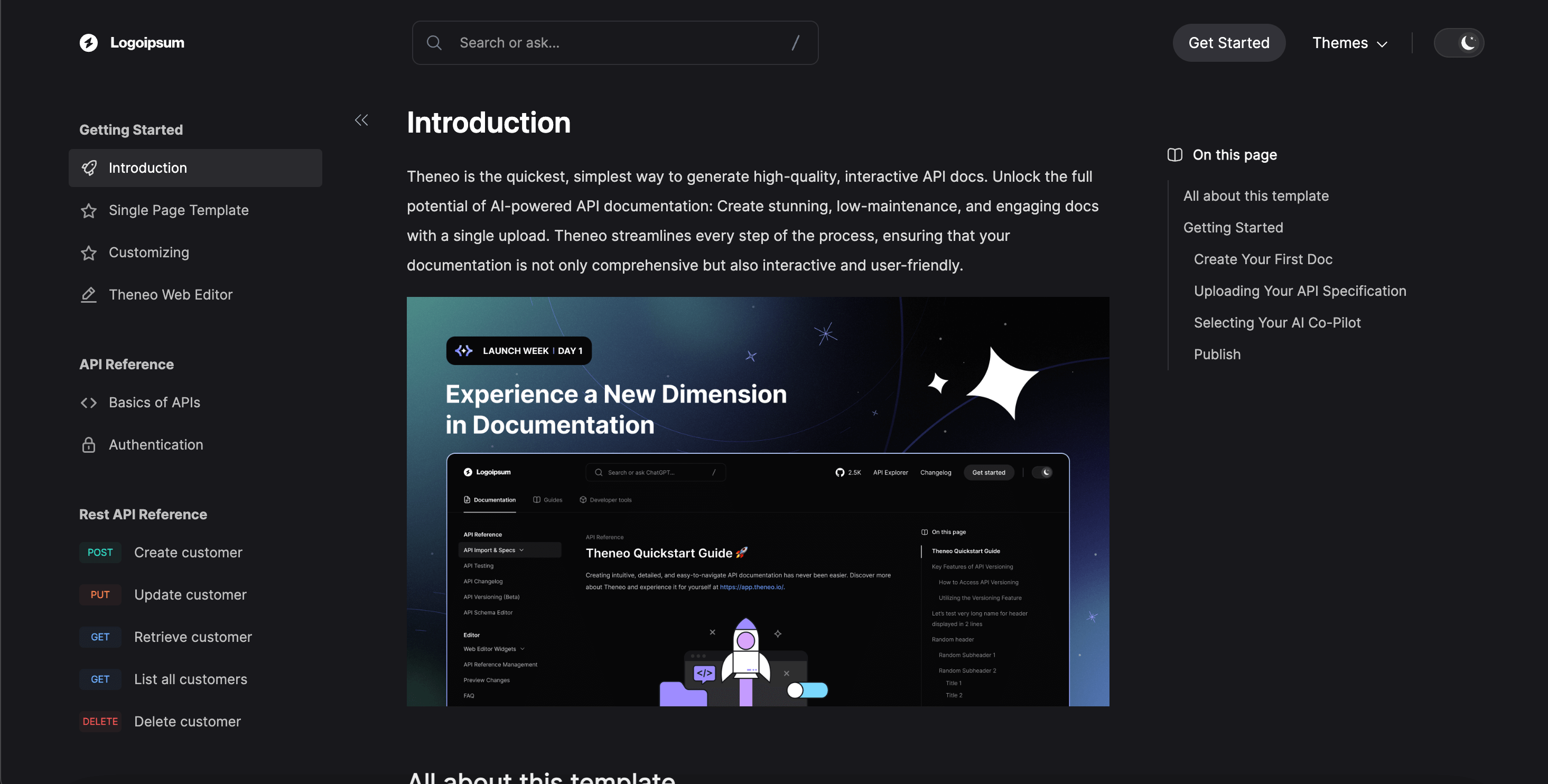
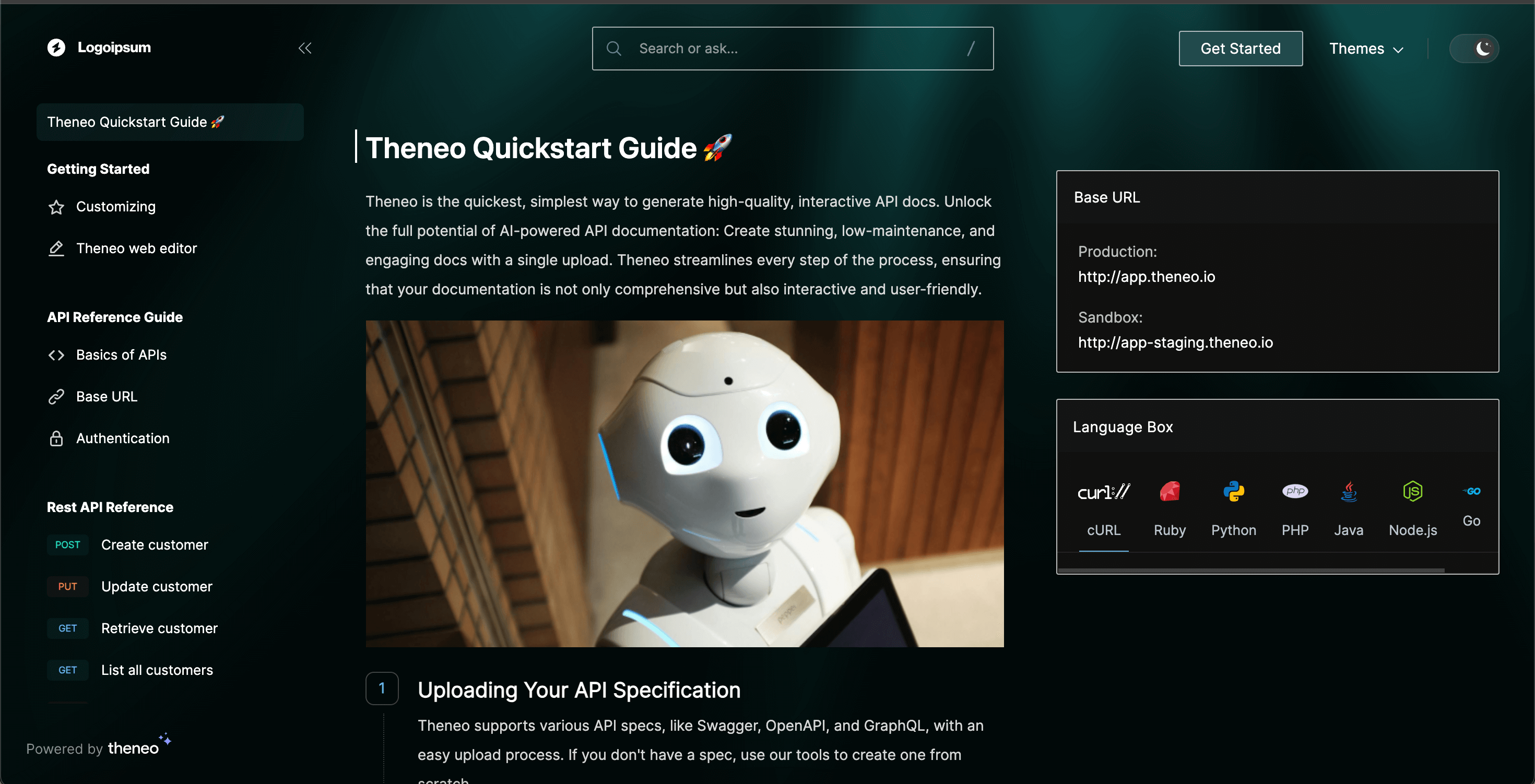
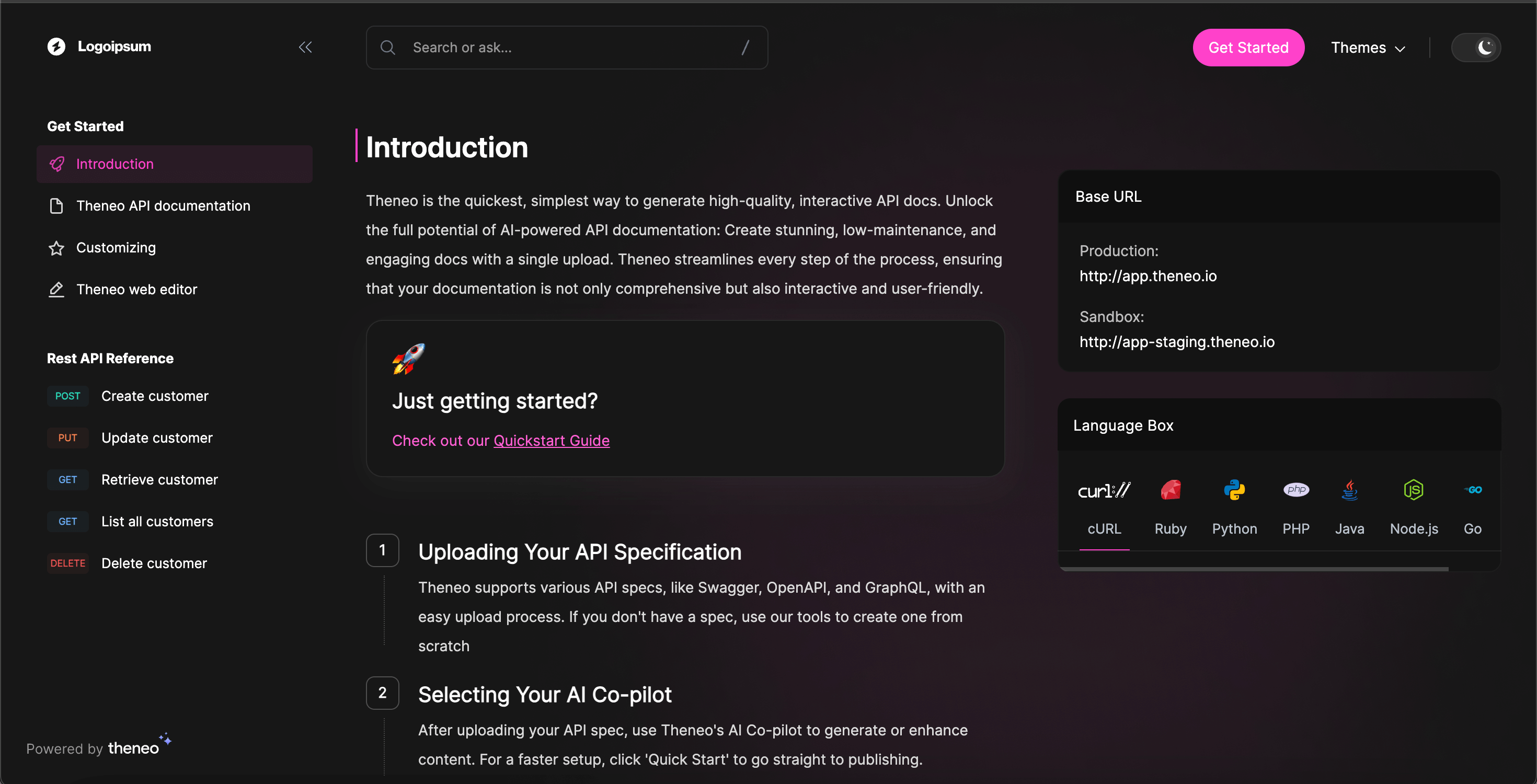
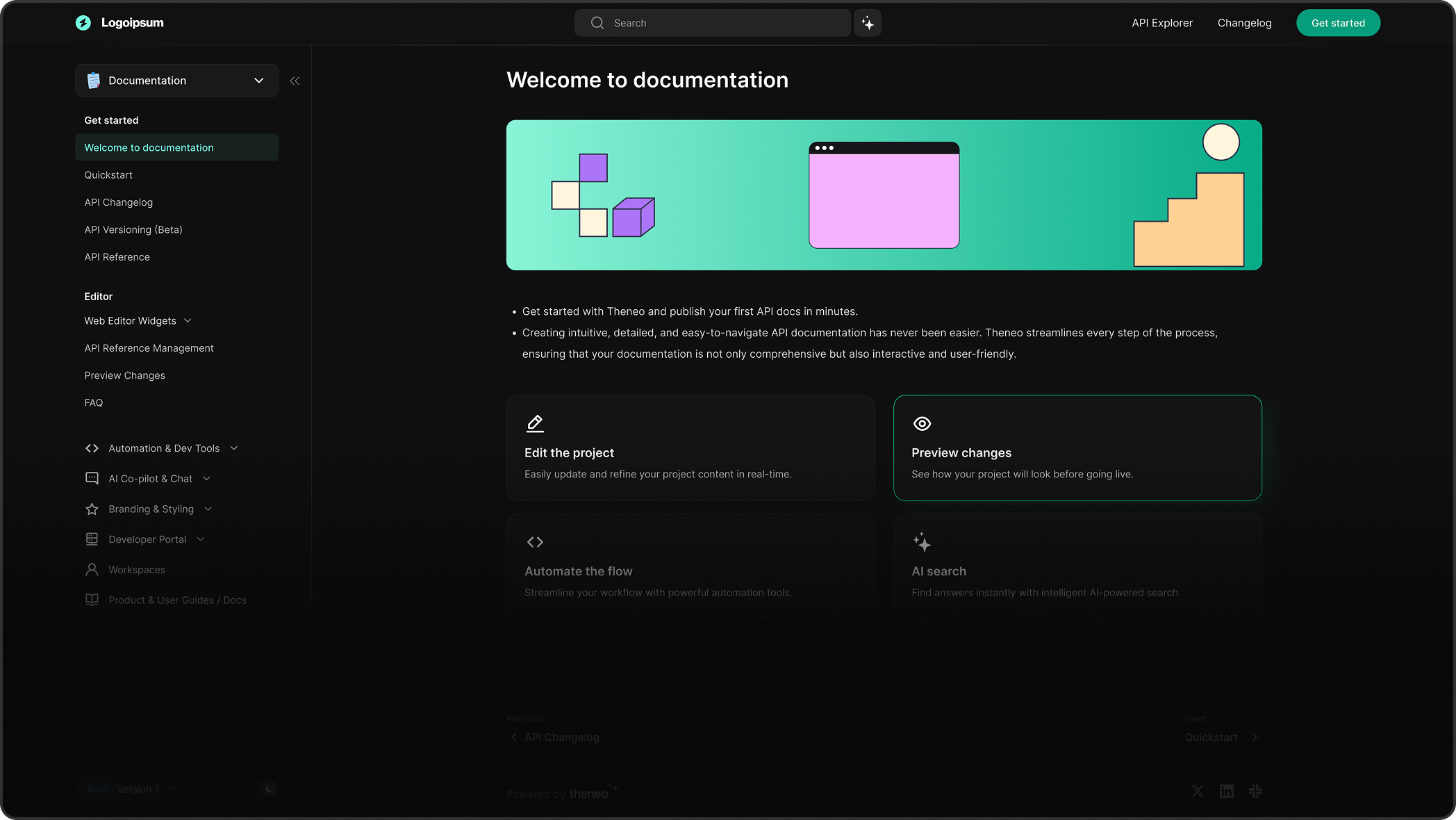
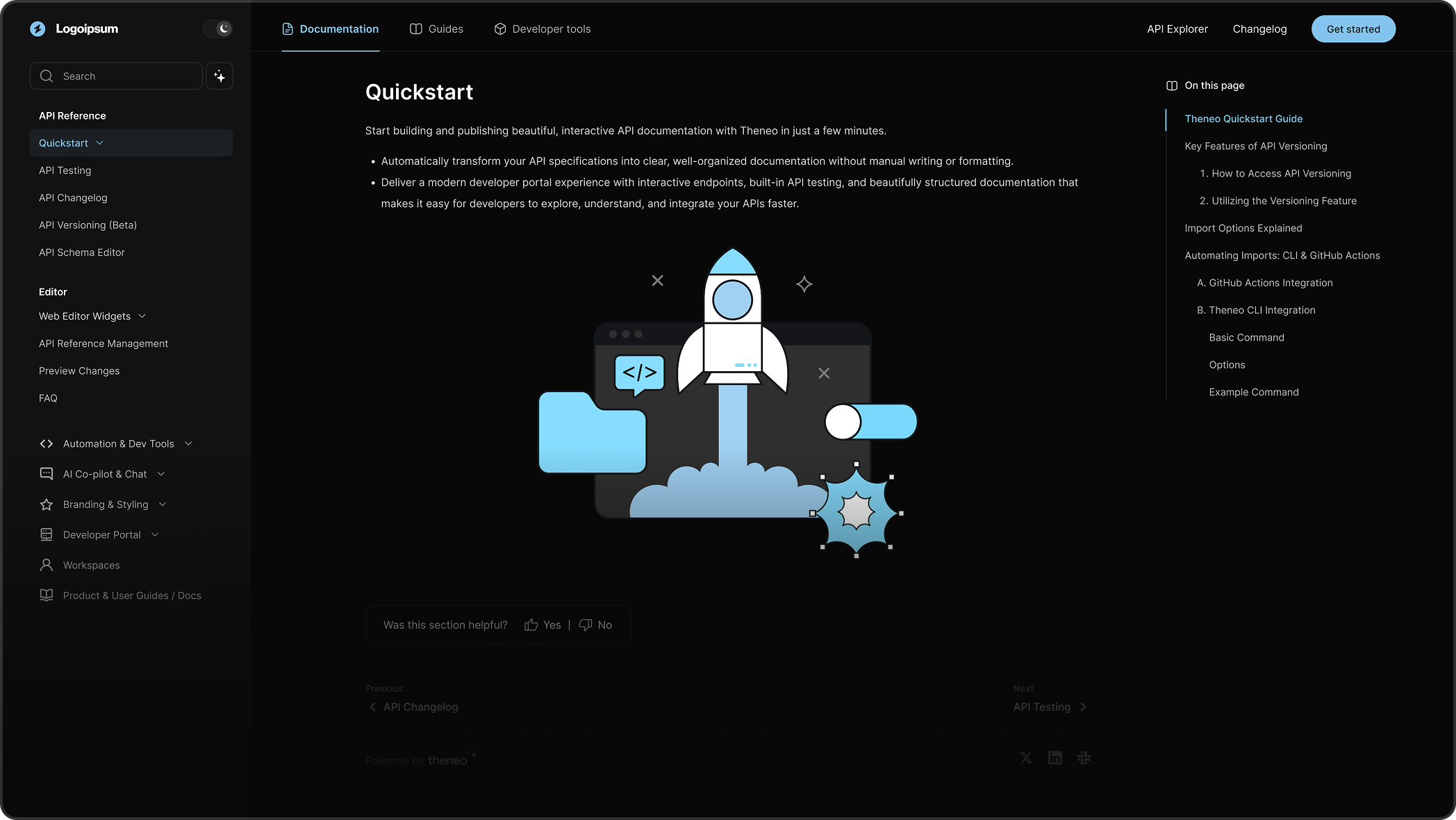
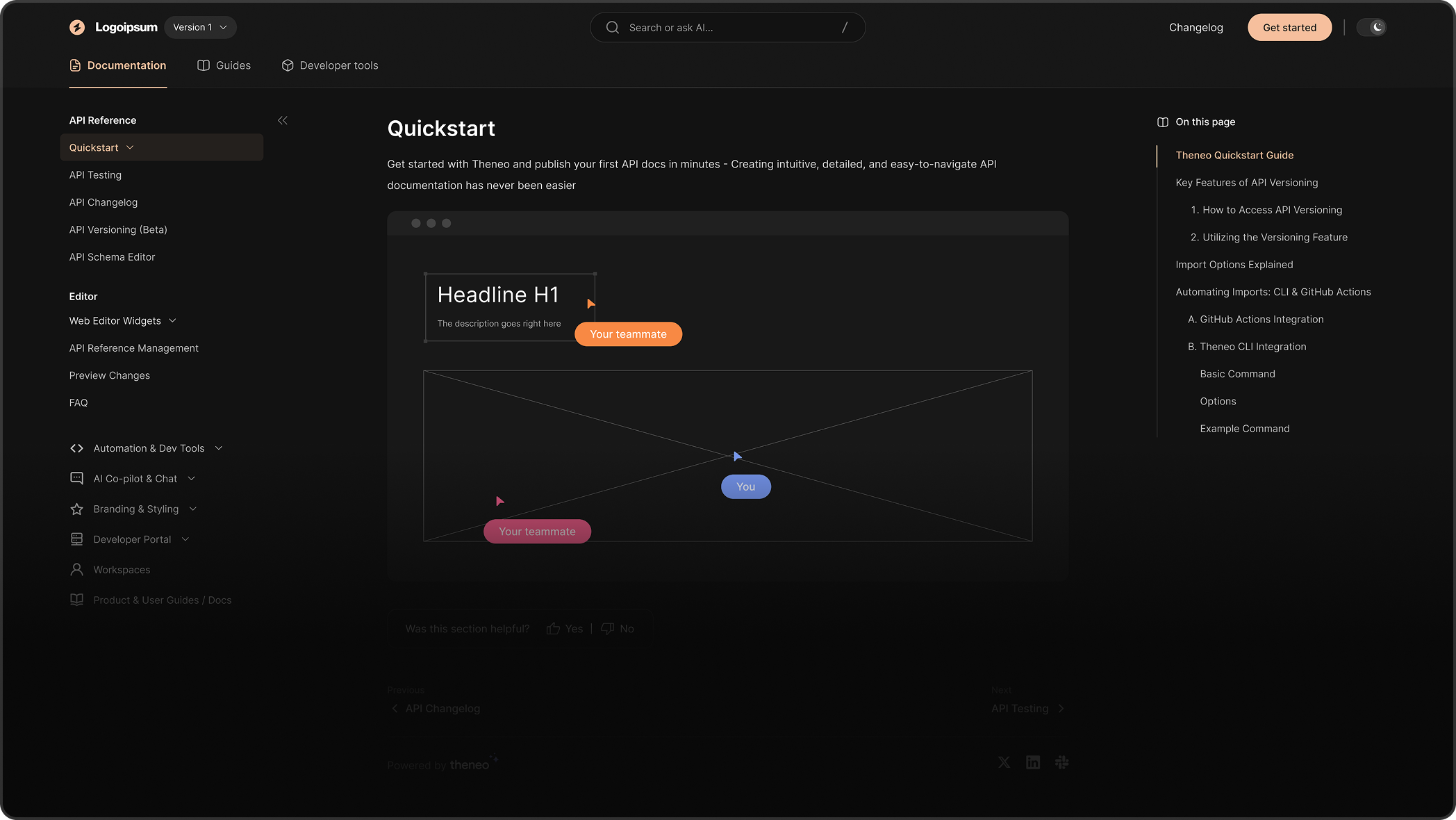
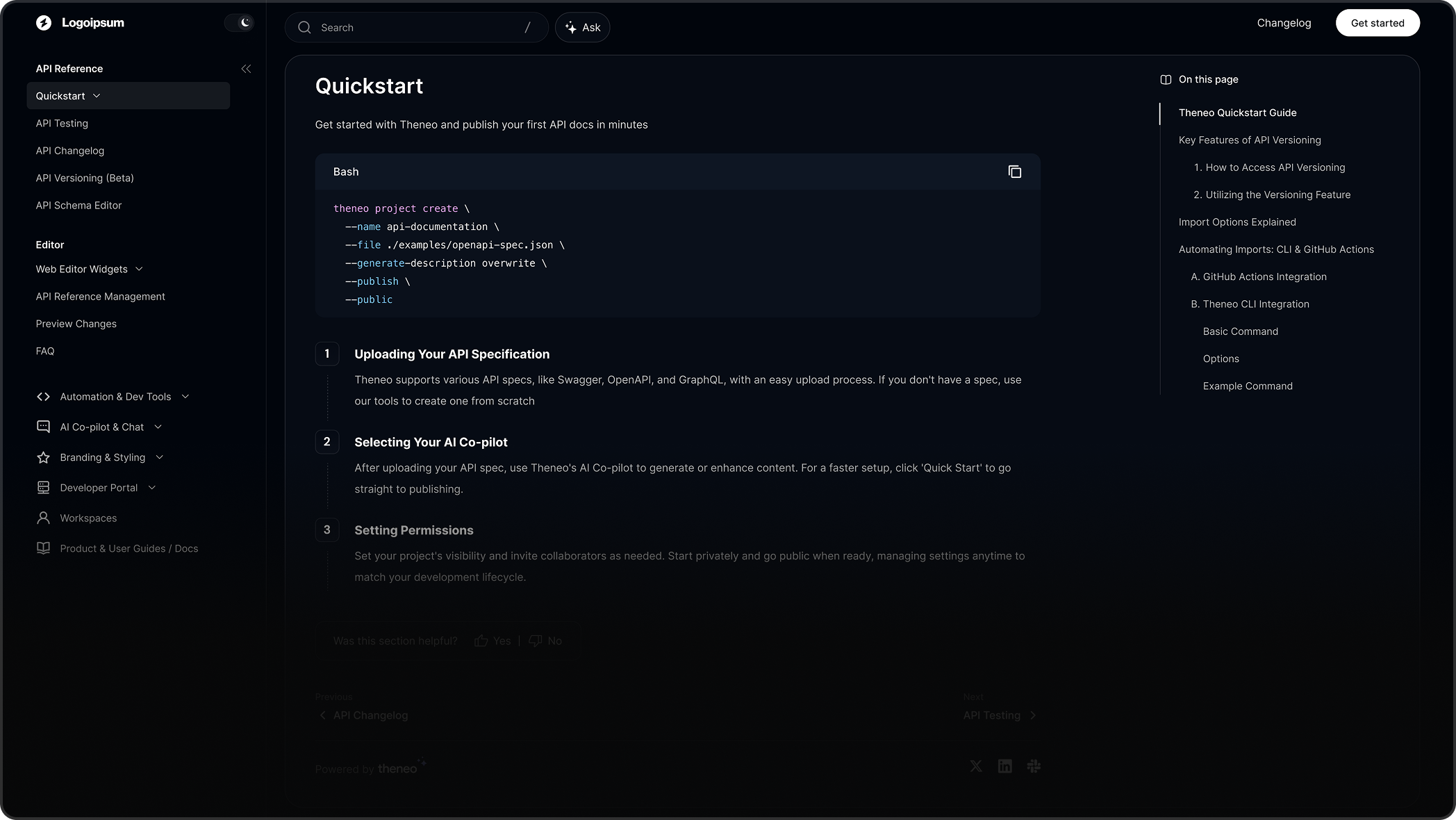
Make your docs unmistakably yours. Apply a polished theme in one click, with no code required. Click through the live samples below to see each one in action.
Workspace predefined themes
Workspace themes apply across every project in your workspace. When you select one, it becomes the default look for all of your documentation, so switching a workspace theme affects every project at once. You can set a workspace theme during onboarding, or change it anytime from the Branding page.
Apply a workspace theme during onboarding, or from the Branding page.
Project Themes
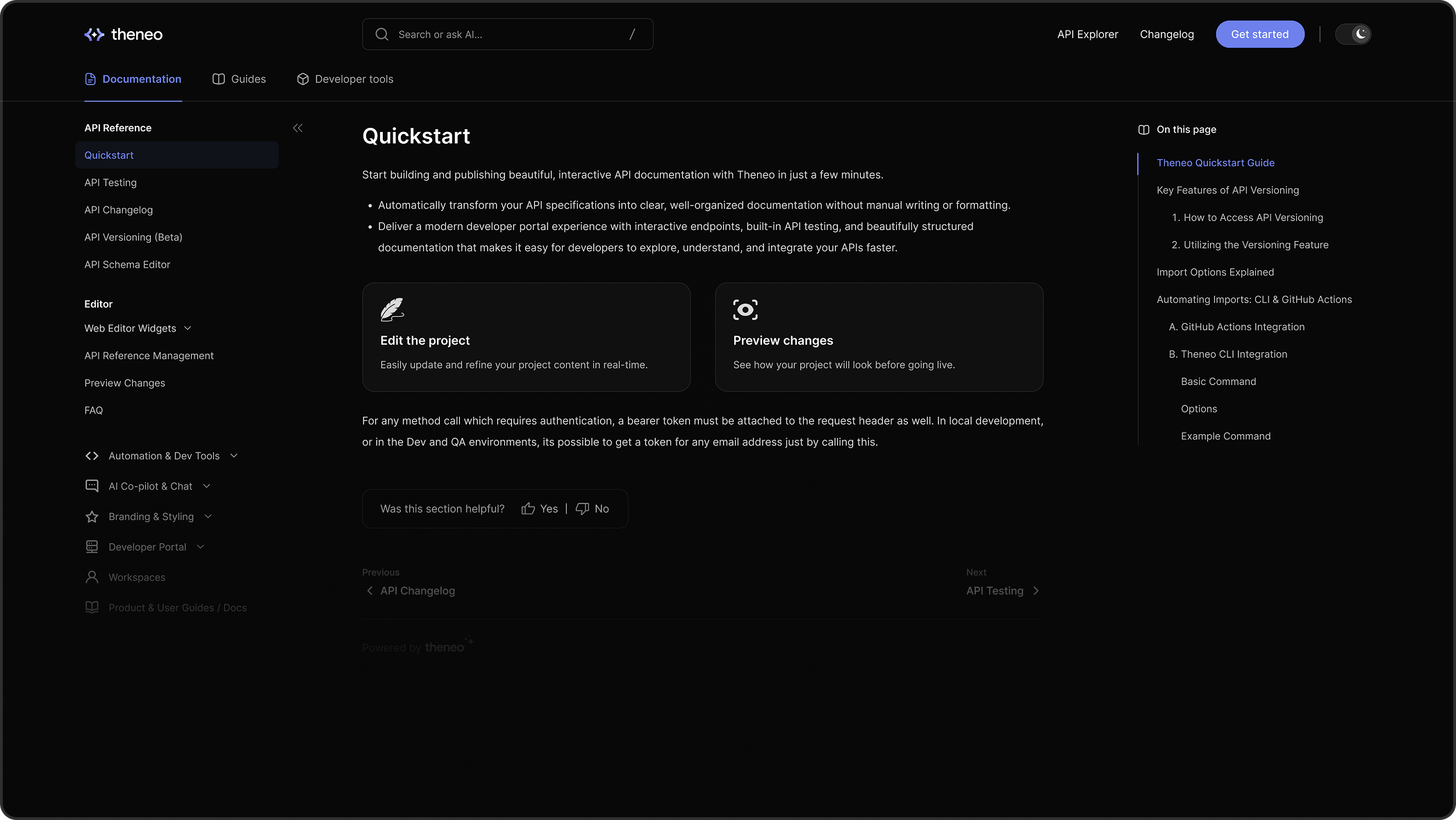
Project themes apply to a single project rather than your whole workspace. Where workspace themes set your overall brand, project themes mainly change layout, such as where search sits, where the light and dark mode toggle appears, and a few other structural details.
For colors, custom CSS, and custom JavaScript, use the Branding page instead.
Apply a project theme from Project Settings → Appearance → Change template.

Layout
Theneo offers two ways to present a project's sections, and you can switch between them anytime.
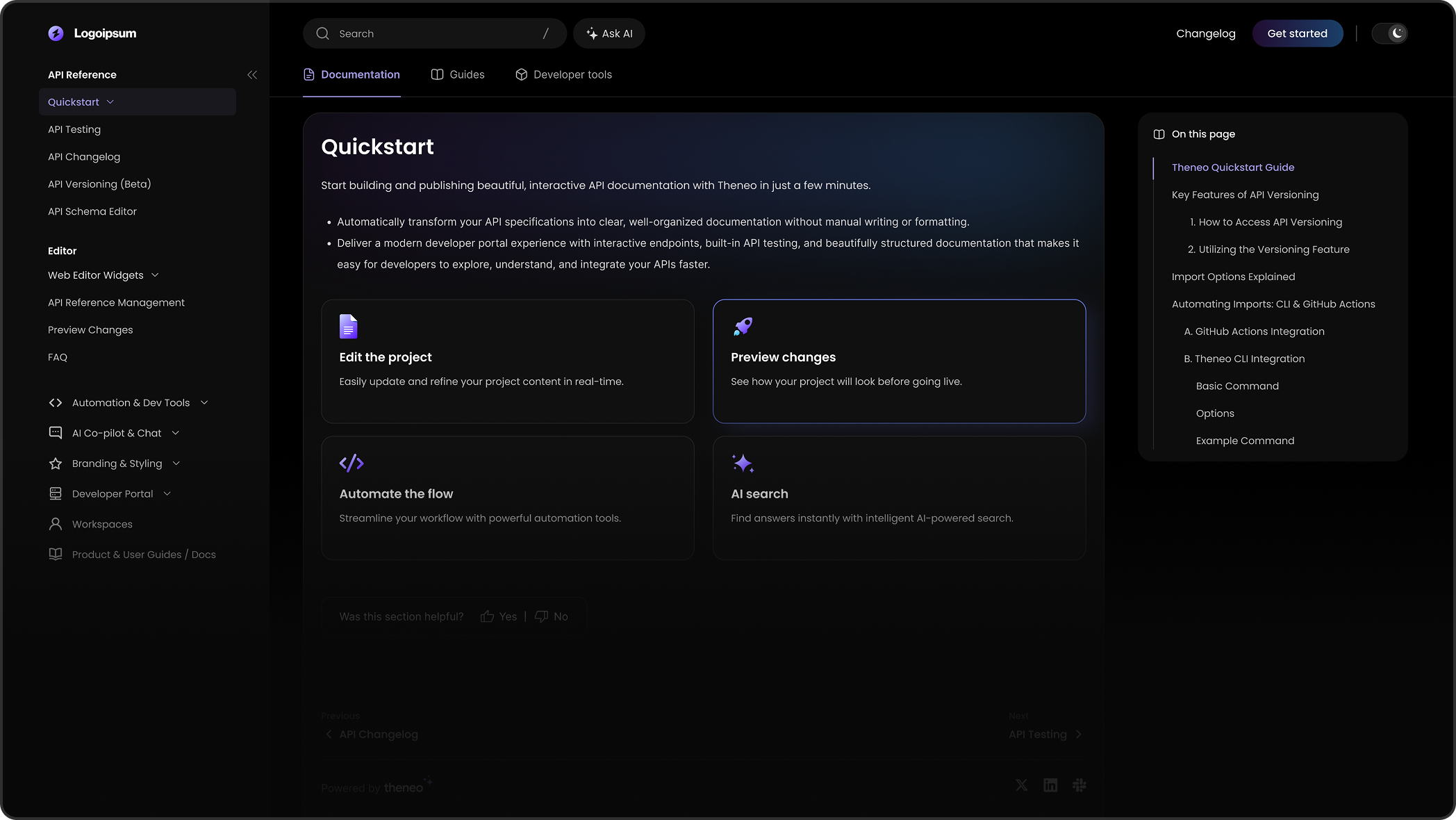
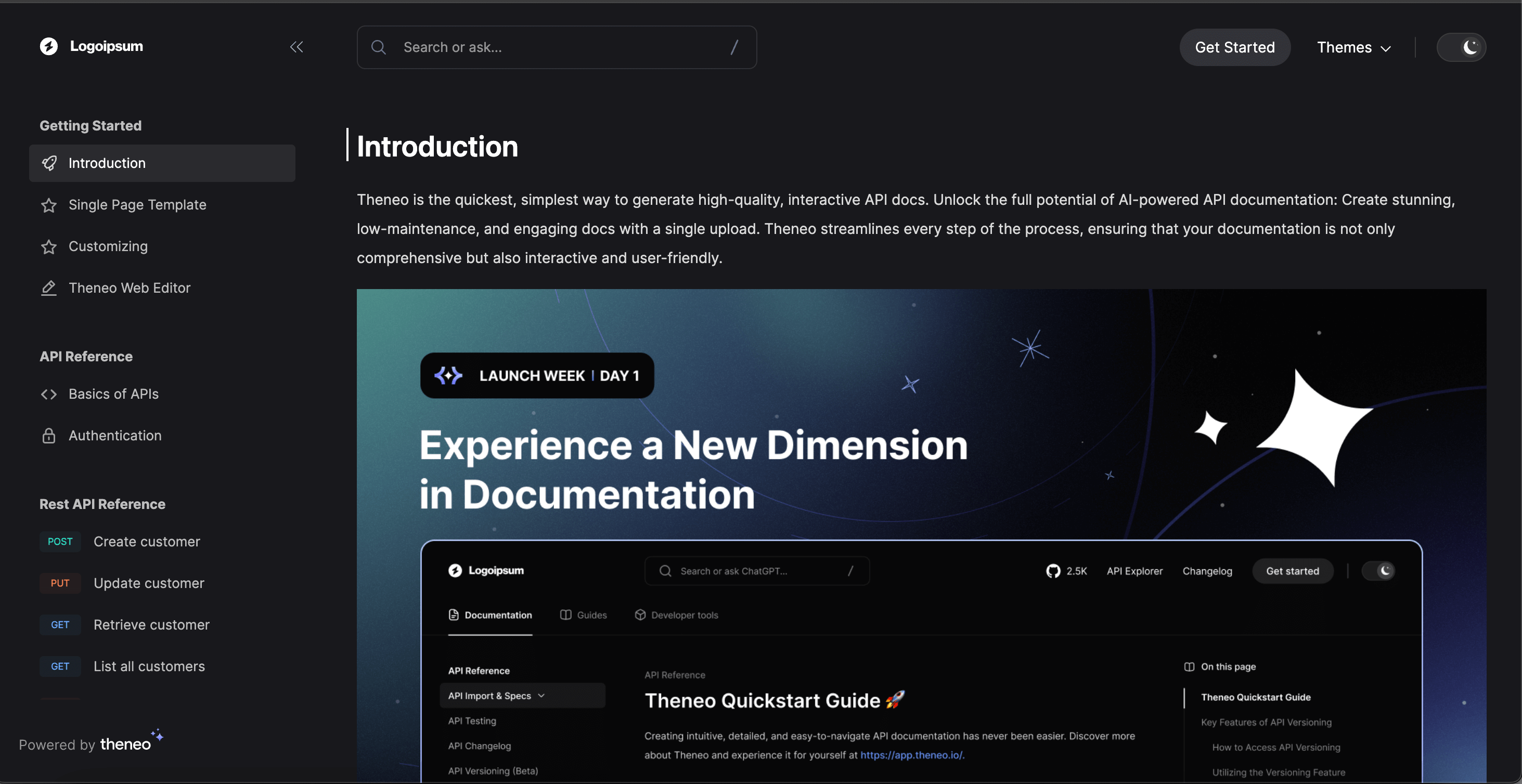
Single Page Template gives each section its own page. Readers click through to the next section to continue, moving through topics one at a time. This works well for user guides.
Continuous scrolling flows all sections together on one page, so readers scroll from one section to the next without clicking. We recommend this for smaller API reference projects.
Switch layouts in Project Settings → Features → Single Page Template.
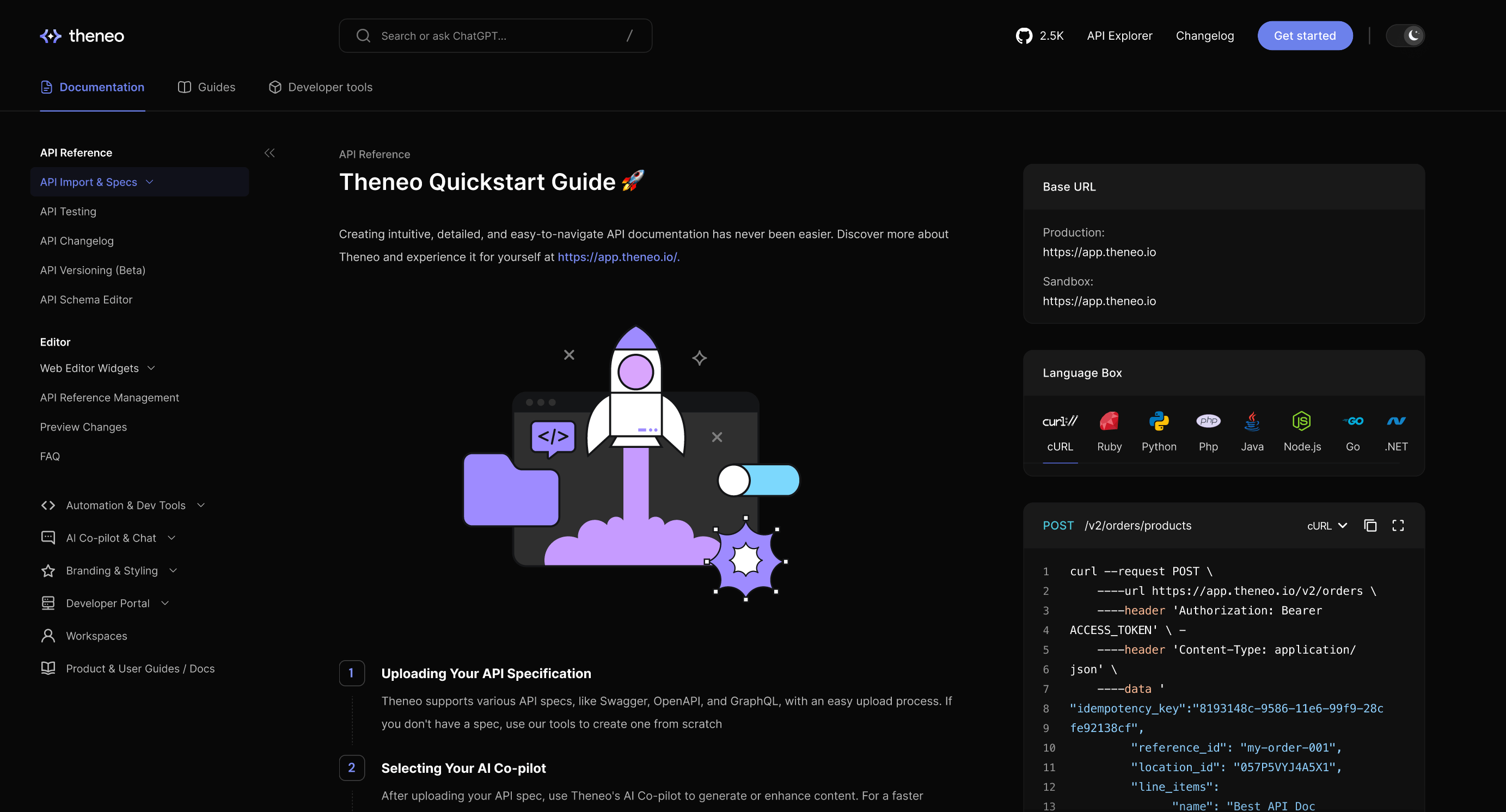
Everything on one long page, best for API reference and specs.
Fine-tune your brand
A theme instantly sets fonts, colors, and header and sidebar styles. Go further in Branding: primary and secondary colors, logo and favicon, fonts, code-block styling, footer links, and custom CSS/JS.


On this page
- Themes & Templates