API Changelog
Theneo's Changelog records exactly what changed on every publish, writes the summary for you, and notifies subscribers automatically. Your readers always know what moved, without you writing a line.
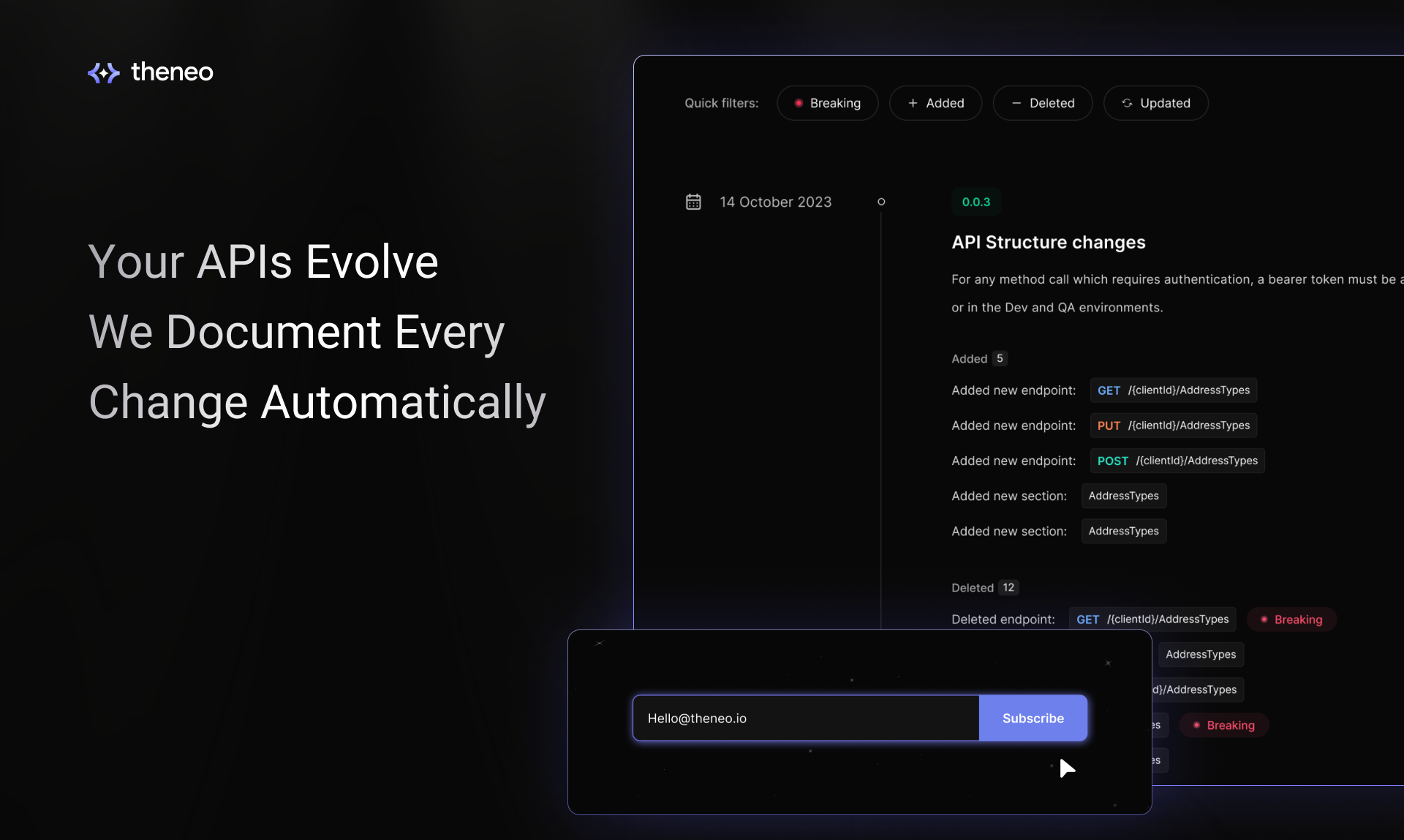
Automated changelog
When you import a new API spec and click Publish, Theneo diffs it against the previous version and logs every change:
Breaking changes
Removed or altered fields and endpoints that could break existing integrations.
New endpoints
Routes and operations added since the last publish.
Updated sections
Edits to existing endpoints, parameters, or schemas.
Everything lands on a dedicated changelog page, giving you a detailed version history with timestamps.
Release notes
Add concise release notes to highlight what changed for both internal teams and external users. They appear on your dashboard and on your public changelog page.
Add a release note
1
Open the Public Changelog section
Go to the Public Changelog section on your dashboard.
2
Add a release note
Click Add Release Note.
3
Write or generate it
Type a brief summary manually, or click Ask AI to generate a professional one.
AI-generated summaries
With one click, Theneo's AI acts as your technical writer. It detects every change in the newly published spec and writes a polished release note covering new endpoints, updated descriptions, removed sections, and breaking changes.
Especially useful for teams that want clear, reliable summaries without manual drafting.
Saving and deleting notes
Save attaches a note to the current update. It appears on the dashboard and the public changelog page.
Delete by hovering over a note and clicking the trash icon. It is removed from both views permanently.
Email notifications
Readers can subscribe to stay in the loop:
1
Enter an email
Add an email in the field on the Changelog page.
2
Subscribe
Click Subscribe to receive updates on every change.
Immediate awareness
Subscribers hear about published changes as soon as they go live.
Convenient summaries
Each update arrives summarized, so there is no need to check manually.
Version tracking
Readers stay aligned with the latest version of your API over time.
Changelog field visibility
Project Editors control exactly which fields appear on the public Changelog page, keeping auto-generated or irrelevant entries out of view without deleting the underlying records. Hidden fields stay fully intact and can be restored anytime.
Visible fields
Appear on the public Changelog page, readable by anyone with access to your portal. This is the default for every field.
Hidden fields
Excluded from the public page, while the underlying record is preserved in full. Only Editors can see hidden fields from the dashboard.
Who can use it
Workspace Admins and Project Editors can hide fields and see hidden ones. Viewers and public readers can do neither.
Hiding changelog fields
1
Open the Public Changelog tab
Navigate to the Public Changelog tab in your project dashboard.
2
Click Manage Visibility
Locate the Manage Visibility button.
3
Select fields to hide
Use the multi-select interface to choose one or more fields. Auto-generated fields, such as those created during spec imports, are common candidates.
4
Confirm and apply
Confirm to apply. Selected fields are hidden immediately, with a hidden indicator shown in the dashboard so Editors can spot them.
Changes take effect immediately on the live page, with no republishing required.
5
Verify the public view
Open your public Changelog page to confirm the selected fields no longer appear. All other fields remain intact.
Restoring hidden fields
Hidden fields can be restored to the public page anytime, with no data loss. Click Manage Visibility, deselect the fields you want public again, and confirm. They reappear immediately, with no republishing needed.
FAQ
Can I turn off the changelog?
Can I turn off the changelog?
Yes, the changelog is optional. Disable it anytime in Project Settings → Features by toggling off the changelog feature.
Can I edit the changelog?
Can I edit the changelog?
Direct editing of changelog entries is not available yet. To remove a specific entry from the public changelog, go to your project configuration, select Public Changelog, and delete the entry.
Can I edit versions?
Can I edit versions?
Editing version details is on our roadmap and coming soon, giving you more control over how you present version changes.
Will breaking changes create a new API version automatically?
Will breaking changes create a new API version automatically?
Theneo tracks changes meticulously. Automatic version creation when breaking changes are detected is in development. When released, it will let you manage versions even more effectively.


On this page
- API Changelog