Theneo's MCP Server
Theneo’s MCP Server lets an AI client like Claude or Cursor work directly inside your documentation. Connect it once and the assistant can browse, search, read, and edit your docs through a set of structured tools, with no copy and paste.
This is the opposite of generating an MCP server from your API spec. That feature exposes your API to AI clients. Theneo’s MCP Server exposes your documentation, so AI can help you write and maintain it.
What you can do
Browse structure
Walk the full section tree of a project, with names, slugs, and IDs.
Search docs
Find sections by keyword across names, slugs, and content.
Read content
Pull a section’s full content, or just the fields you need.
Edit content
Make precise edits to a section, including its rich text body.
Add sections
Create new sections, nested wherever you want in the tree.
Remove sections
Delete sections you no longer need.
How to use it
1
Generate an API key
In Theneo, go to Settings → Tools & Integrations (or click Connect with AI agents in the dashboard side menu) and generate an API key. Copy it right away; after that it's shown masked. Any workspace can connect, no request needed.
2
Connect your AI client
On the MCP tab of Tools & Integrations, pick your client: Claude (install the official connector), Codex, Cursor, or Others (copy the ready-made MCP server configuration). Use your API key to authorize.
3
Point it at your project
Give the assistant your project ID so it knows which docs to work on.
4
Work in natural language
Ask it to restructure a section, fix a page, or draft a new guide. The assistant uses the tools to read what exists and apply the changes.
Connect to Claude
The quickest way is Install connector on the Claude sub-tab of Settings → Tools & Integrations → MCP, which opens Theneo in Claude's connector directory. To add it manually as a custom connector instead, follow these steps. The same flow works for other MCP-compatible clients.
MCP server URL: https://app.getelva.ai/mcp/theneo/theneo-mcp
1
Open the connector menu
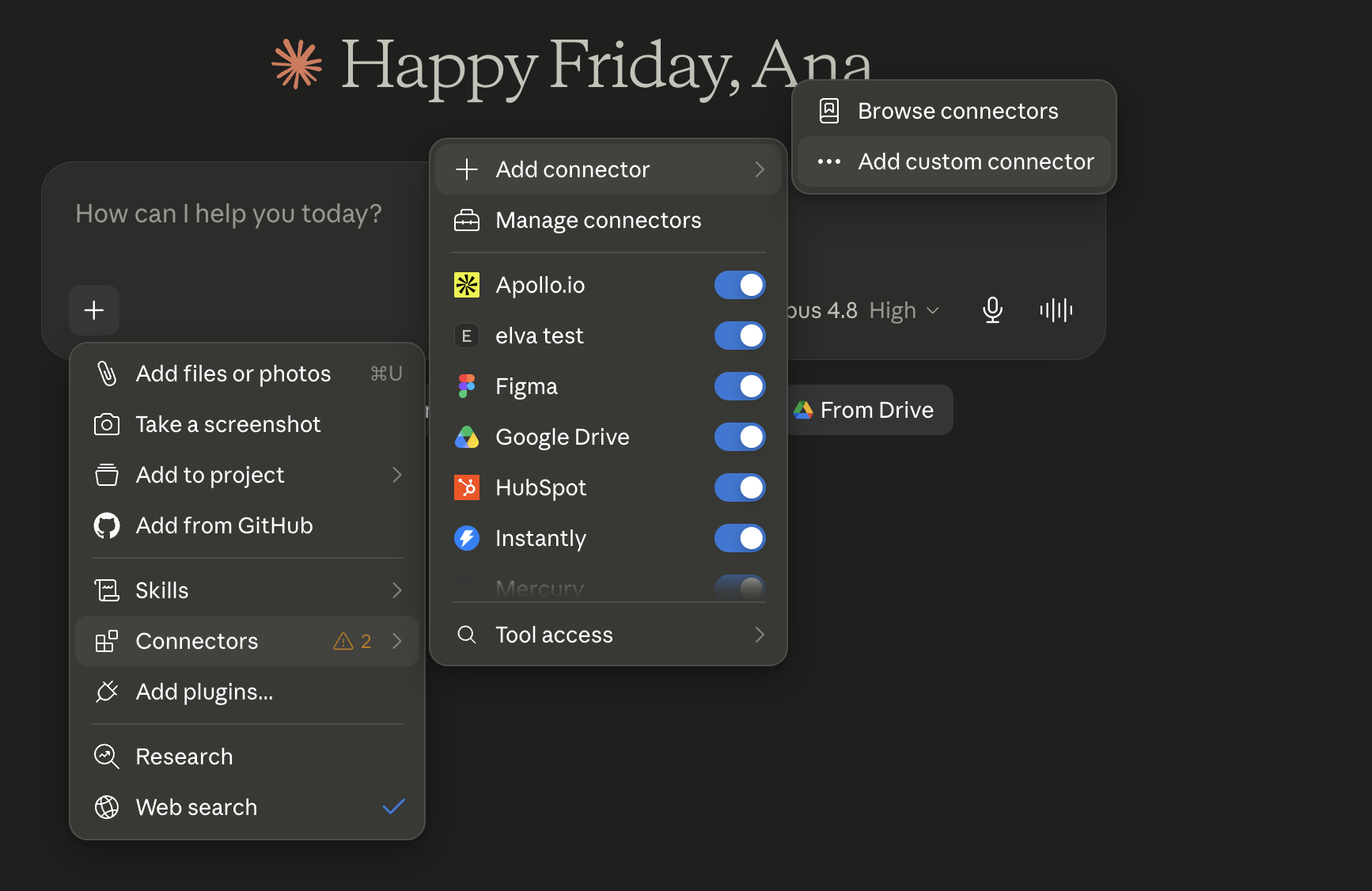
In Claude, click the plus button in the message box. Open Connectors, choose Add connector, then select Add custom connector.
2
Add the custom connector
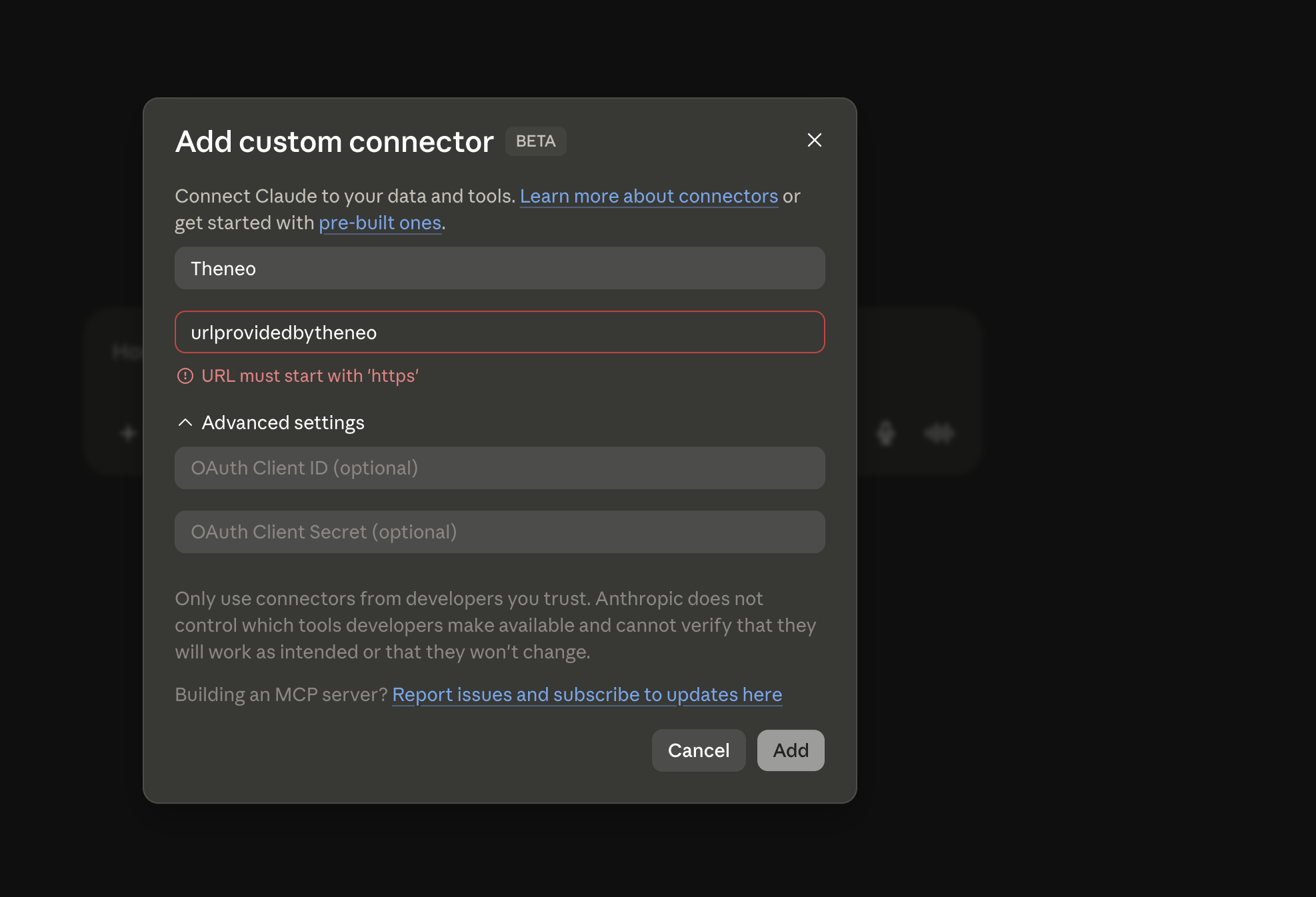
Give the connector a name such as Theneo, then paste the MCP server URL https://app.getelva.ai/mcp/theneo/theneo-mcp. Click Add to save it.
3
Connect
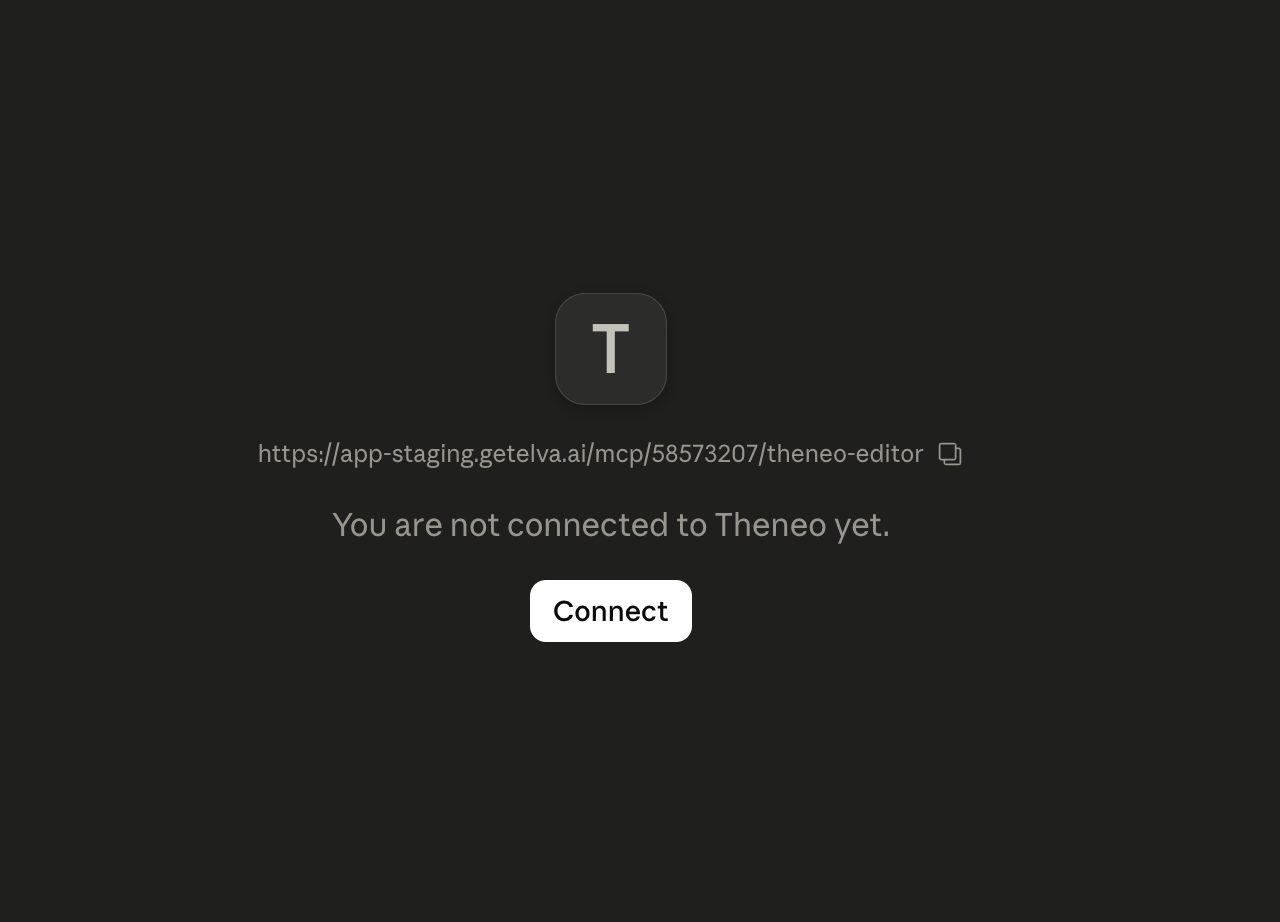
Open Manage connectors, find Theneo in the list, and click Connect.
4
Authorize in Elva
Connecting redirects you to Elva, our latest API management tool. Enter your Theneo API key to finish the connection.
You can find your API key in Account Settings, Tools and Integrations.
Tip: when giving Claude instructions, use the full documentation URL and the exact section you would like to change. That way it edits the right place instead of guessing.
The tools
Theneo’s MCP Server exposes these tools to the connected AI client.
Get project structure
Get project structure
Returns the project’s full section tree and metadata. This is the starting point for any work and is the one tool that runs without the MCP API feature enabled.
Search sections
Search sections
Finds sections by keyword, matching on name, slug, description, and endpoint path, and returns their IDs for follow-up actions.
Read section content
Read section content
Reads a single section. Return everything, or request only the fields you need, such as the rich text editor body.
Edit section
Edit section
Applies precise, surgical edits to a section, including its rich text content, so the assistant can change exactly what needs changing and leave the rest untouched.
Add section
Add section
Creates a new section in the project, optionally nested under a parent section or created inside an editor branch.
Delete section
Delete section
Permanently removes a section from the project. This action cannot be undone.
Rename section
Rename section
Renames a section and updates its entry in the sidebar. A custom slug is kept; an auto-generated slug is regenerated.
Get widget format
Get widget format
Returns the exact JSON structure and an example for a content widget, such as a callout, code block, table, steps, tabs, or card group, so the assistant builds widgets that render correctly.
Undo an AI edit
Undo an AI edit
Before the assistant edits a section, Theneo saves a snapshot of it. The assistant can read that snapshot and restore the section to it if an edit went wrong. Restoring can overwrite later edits, so it asks for confirmation when someone else has edited since.
To keep responses small, reading a section replaces large embedded images with a size placeholder. Text, formatting, and hosted image links are returned as usual.


On this page
- Theneo's MCP Server